
Published
Last updated
To use an ADHD digital planner on an Android tablet, download and extract the original PDF, import it into a compatible annotation app, test its navigation tabs, then write on one page and reopen a backup. WebToolBase.com compares Samsung Notes, Penly, Xodo and three alternatives below. App support and PDF compatibility depend on the installed version and device.
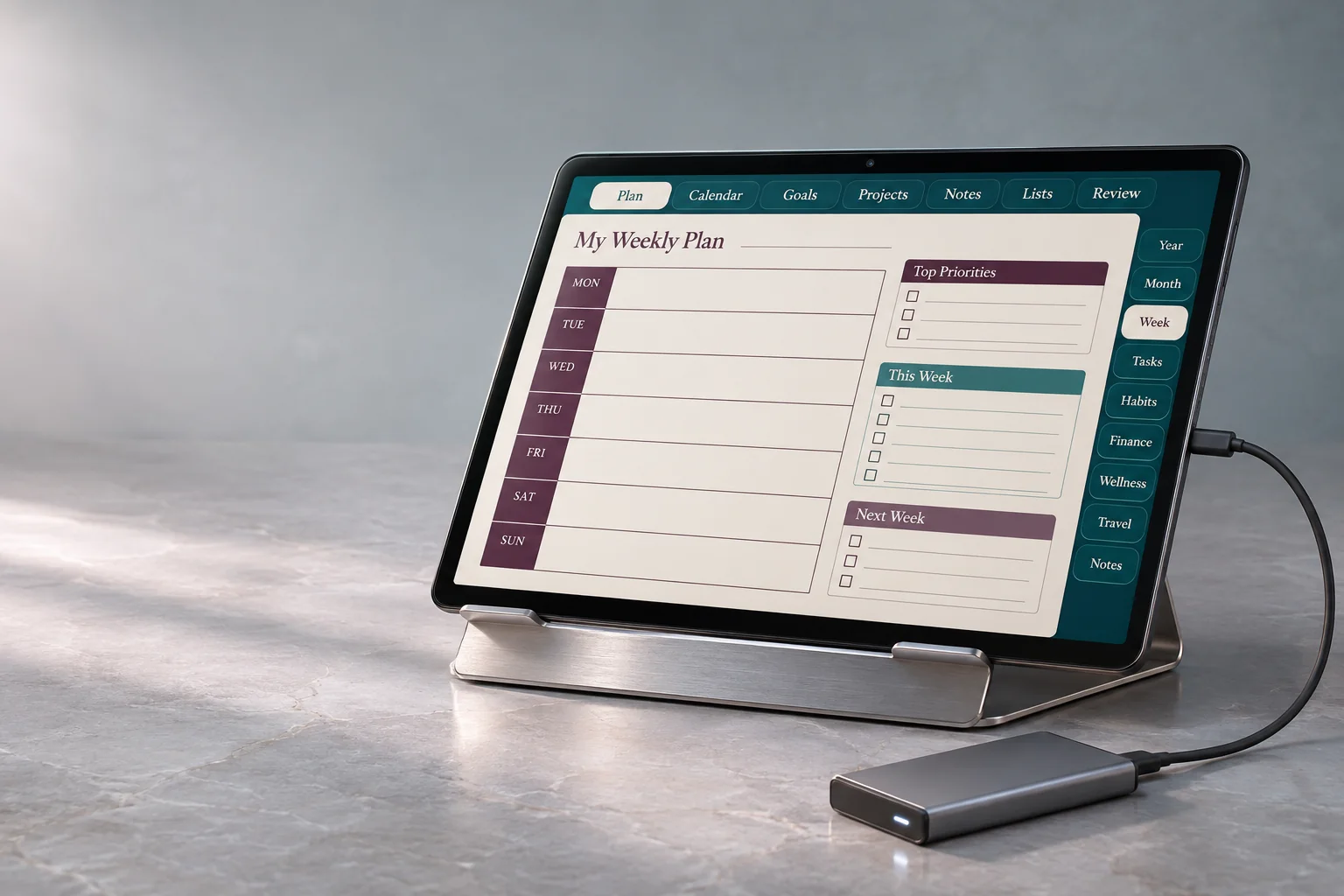
A planner is only useful if you can reach the page you need without wrestling with the app. Start by checking the file, the import method and the difference between writing and navigation modes. You can solve many apparent hyperlink problems before changing apps or buying another planner.
Documentation reviewed November 22, 2026. This is a source-based setup guide, not a six-device performance test. The tablet artwork is illustrative. Compatibility statements below distinguish documented app features from checks you should perform with your own planner.
Compare the WebToolBase digital planner editions and app requirements. Already have a PDF? Follow the setup and acceptance checklist before entering a week of plans.
What do you need for an Android PDF planner?
You need the planner PDF, enough local storage for the original and a working copy, and an app that can both annotate PDFs and follow the navigation links you intend to use. A compatible stylus is optional for typed entries, but handwriting quality depends on the tablet, stylus and app together. Android support does not establish identical behavior across every device.
Hyperlinked PDF planners are documents. They do not automatically create calendar appointments, reminders or recurring tasks in another app. Internal links jump to pages within the file; external links open websites. A decorative tab that looks like a button still needs a real PDF link behind it. A screenshot of a planner page cannot preserve those interactive regions.
The WebToolBase Shop currently lists its Dark Teal edition as 76 undated pages with 909 clickable hyperlinks and a 14-page companion guide. Those are the publisher’s product specifications, not a measured navigation test performed for this article. The large link count describes ways through a document, not 909 separate planning pages. Use the current listing to confirm the edition and included files.
Which app should you choose for Samsung Notes, Penly or Xodo?
Begin with an app you already use if it meets the import, navigation and backup checks. Moving everything into a new system creates its own learning work. The comparison below covers six apps without ranking them by unmeasured speed, privacy or clinical benefit. Current prices, subscriptions and free-tier limits should be checked in the official listing for your region.
| App | Android and PDF support | What to check before choosing |
|---|---|---|
| Samsung Notes | Galaxy-device PDF import and annotation documented | Confirm internal tabs in your installed version; keep an independent export. |
| Penly | Android PDF import and existing hyperlink navigation documented | Check handwriting feel, file size and export. Vendor warns about large-file PDF export. |
| Xodo | Android PDF tools include links to websites and document pages | Test the mobile app, not just a browser preview; review current plan limits. |
| Goodnotes | Android, Windows and web support imported PDF hyperlinks | Use Read Only Mode, or press and hold a link in Edit Mode. Platform features can differ. |
| Notability | Android app requires Android 12L or later and an account | Do not assume iPad feature parity. Test planner tabs; third-party Auto-Backup is unavailable on Android. |
| Noteshelf | Android PDF import, handwriting and annotation documented | Verify your Noteshelf edition, existing PDF tabs and export on the target device. |
How to read this table: documented PDF support is a useful first filter. It is not a certification that every hyperlink in every exported planner works. Goodnotes now documents Android PDF hyperlink navigation, and Notability now has an Android app. Older comparisons describing either platform solely by its earlier limitations can mislead a buyer.
How do you import a planner into Samsung Notes?
Samsung’s import and export instructions describe importing a PDF as a copy, leaving the original file unchanged. In Samsung Notes, touch and hold Create note and choose Import PDF, or create a note and use Insert, then PDF. Select the extracted PDF from the device’s files and complete the import.
Open the index and try an internal destination before writing extensively. If a tap draws a mark or selects ink, leave the writing tool and try the app’s viewing or reading state. This is a troubleshooting step to test on your installed version, not a promise that Samsung Notes supports every PDF link action. Confirm both the destination and the route back to the index.
A PDF opening in My Files is not evidence that it has been imported into Notes. Samsung explains that, starting with One UI 8.5, My Files uses its own viewer by default. Choose Open with and Samsung Notes where available, or import from inside Notes. If the import rejects the layout, check the note’s orientation against the PDF orientation before attempting a conversion.
How do you set up the PDF in Penly?
Penly’s official feature page documents importing PDFs and navigating existing hyperlinks. Import the actual PDF from the extracted download rather than a product image, ZIP archive or cloud-preview page. Name the working document so you can distinguish it from the untouched source.
Test one index link, one section tab and a return path. Then write a short note, close the document and reopen it. Adjust pen width and zoom only after that basic cycle works. A page that feels comfortable at a desk may need a different writing scale when the tablet is held in portrait orientation.
Before committing months of handwriting, export a small working copy and inspect it elsewhere. Penly offers editable .penly and PDF export, but its website warns that large-file PDF export is not currently supported. Keep the editable format when you need to continue working in Penly and use a separately tested PDF when portability matters. A successful import does not prove a full-size export will succeed.
How should you use Xodo for a hyperlinked planner?
Open the local PDF in the Xodo Android app and confirm that you can navigate pages and add an annotation. Test the existing tab links before considering any link-editing features. Xodo documents links to websites and specific PDF pages on mobile, but that feature list is not a reason to rebuild a purchased planner’s navigation.
Keep the fixed page layout for a visual planner. Reflow is designed around extracted text and may not reproduce a page’s boxes and tabs as a usable planning layout. When tapping a tab selects an annotation tool, switch to normal viewing and try again. Save a copy after your first test entry, then reopen the copy to check that the entry and navigation remain usable.
An Android app and an online editor can have different account requirements and paid features. Check the exact product you intend to use instead of carrying a desktop or browser price into a mobile comparison. Choose the simplest workflow that preserves your original file, lets you write comfortably and produces a recoverable copy.
What has changed for Goodnotes, Notability and Noteshelf?
Goodnotes now documents imported PDF hyperlinks on Android, Windows and web. Enter Read Only Mode and select the linked planner element. In Edit Mode, press and hold the link and choose Open Link. Verify other features separately rather than assuming the Android edition is identical to the Apple edition.
Notability’s Android FAQ specifies Android 12L or later, an account and Notability Cloud for cross-platform sync. It also says third-party Auto-Backup is not available on Android. That makes a manual export worth testing. App availability is established; complete hyperlink compatibility with this planner has not been tested here.
Noteshelf’s Android instructions use Add, then Import Document, to bring in a PDF for annotation. Check the edition installed on your tablet and try the existing links yourself. Documentation about creating new hyperlinks on a different platform does not establish how an Android import behaves.
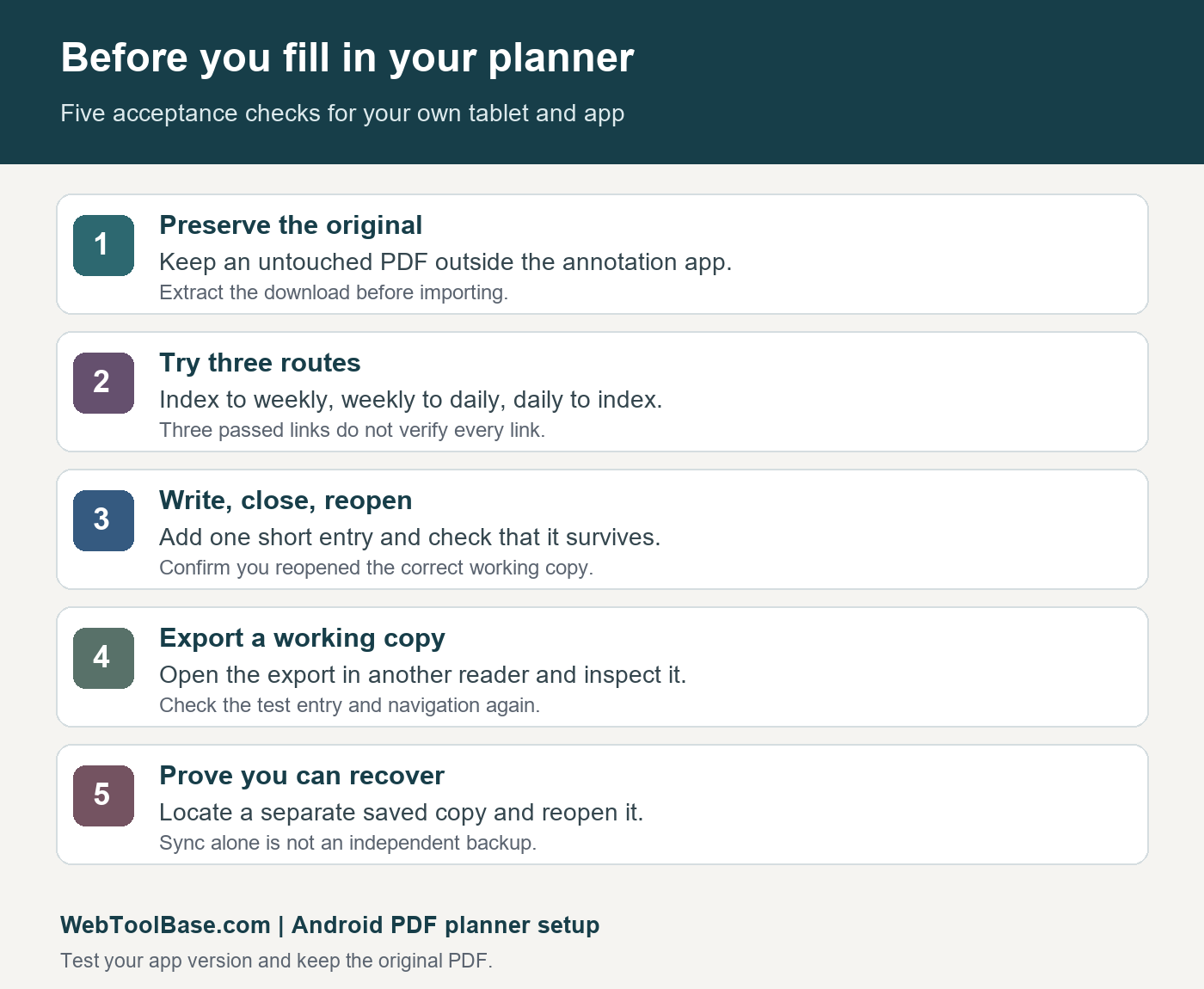
What should you test before filling in your planner?
Use a small acceptance check before entering information that would be tedious to reconstruct. Record the tablet model, Android version, app version and planner edition alongside the date. That short record makes a later problem easier to reproduce after an app update.
| Check | Pass condition | If it fails |
|---|---|---|
| Original file | Untouched PDF remains outside the annotation app | Download and extract the supplied PDF again. |
| Navigation | Index, section tab and return route reach the expected pages | Check viewing mode; compare the same link in another PDF reader. |
| Writing | One handwritten or typed entry survives closing and reopening | Check save location, app permissions and the actual working copy. |
| Export | Export opens elsewhere with the test entry visible | Try the editable backup format or consult the app’s export limits. |
| Recovery | A separate copy can be located and reopened | Choose a separate folder or backup destination and repeat the check. |
For a simple example, choose three routes: index to weekly plan, weekly plan to daily page, and daily page back to index. Three successful taps are three checked routes, not proof that all 909 advertised links work. Add one short entry and repeat the route after exporting. If the original works but the export fails, investigate the export settings before blaming the source PDF.
Why are the planner tabs not working?
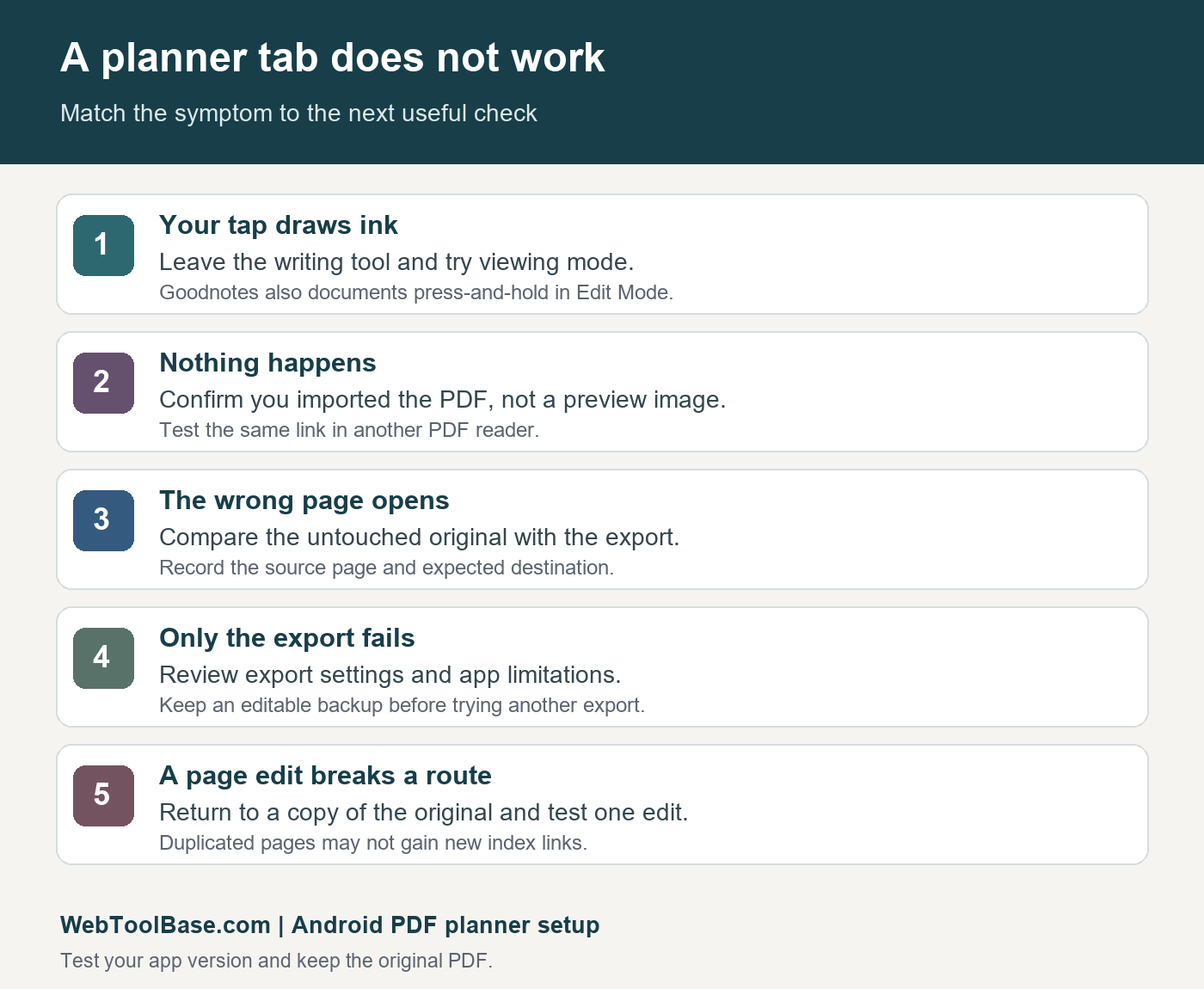
First identify what the tap actually does. Drawing ink suggests an active writing tool. Opening the wrong page suggests a destination or export problem. Doing nothing can mean a preview without link support, an incomplete import, a missing link or an unsupported action. Each symptom points to a different next check.
Compare the same destination in an independent PDF reader using a copy of the original. If it works there, focus on the annotation app’s mode, version and import path. If the original fails in multiple readers, contact the planner publisher with the edition, source page and expected destination. Do not upload a filled planner containing personal information just to demonstrate a broken blank tab.
Avoid printing to PDF, converting pages to images, flattening or compressing the original as your first fix. Some processing workflows can change or discard interactive elements. Keep the source untouched and retest a processed copy. If you add labels with a PDF page number tool, check its output on an expendable copy before using it with a hyperlinked planner. Printed numbers and link destinations are separate features.
How do you make the planner easier to use day to day?
Choose one daily page and one place to capture loose tasks. You do not need to populate every tracker because it is included. A useful first entry might be “open the document and write the first heading” instead of “finish the project.” The first-step guide gives examples of making that action concrete.
Build the plan around the time and capacity you actually have. Use the Time Blindness Calculator for a backward schedule and the 3-3-3 method guide to compare the total planned workload against your available day. A PDF records the plan; an external alarm or calendar may still be needed when a timed cue matters.
Comfort depends on more than a dark background. Compare the dark and light planner workflow, inspect text contrast, and check whether small navigation labels remain readable. For design choices, see the font pairing guide. These are practical presentation checks, not treatments for ADHD.
How much does the planner setup cost?
The WebToolBase Shop currently shows $9.99 for Dark Teal and $17 for the dual-edition bundle. The tablet, stylus, annotation app and any app subscription are separate. Review the checkout price and app-store terms before purchasing because regional pricing and plans can change. No app purchase is required merely to read this guide.
A free browser planning tool may suit you better if you mainly need a short task list or a timer. A calendar app is more appropriate when automatic alerts and shared appointments are essential. Choose a PDF planner when you value page-based handwriting and flexible layouts, and can maintain the file and backup routine it requires.
Frequently asked questions
Can I use a PDF planner without a stylus?
Yes, if your annotation app supports typed text. Try the text tool, keyboard placement and zoom before committing to that workflow. A stylus is optional for typing; handwriting requires suitable hardware and app support.
Do I need the internet to use planner hyperlinks?
A link to another page in a locally available PDF does not inherently need a website. Cloud access, account checks, syncing, external links and individual app behavior may still require a connection. Test offline use after confirming that the complete file is stored on the tablet.
Will adding or duplicating pages break the tabs?
Page edits can affect navigation depending on how the links and app are implemented. Duplicate a working copy, make one change and retest the relevant destinations. Keep the original and avoid assuming that a copied daily page automatically receives new links from the index.
Is cloud sync the same as a backup?
No. Sync keeps a library aligned across devices and may also propagate an unwanted change. Maintain a separate recoverable copy, and verify that you can reopen it. The right export format depends on whether you need editable app content or a portable PDF.
Can this planner replace ADHD care?
No. It is an organizational document. Its pages can support a chosen planning routine, but neither this guide nor the planner establishes a treatment effect, improved symptoms or a medical outcome.
Ready to choose an edition? Review the WebToolBase planner listing and compatibility matrix, then keep the untouched PDF and run the five checks above on your own device.