
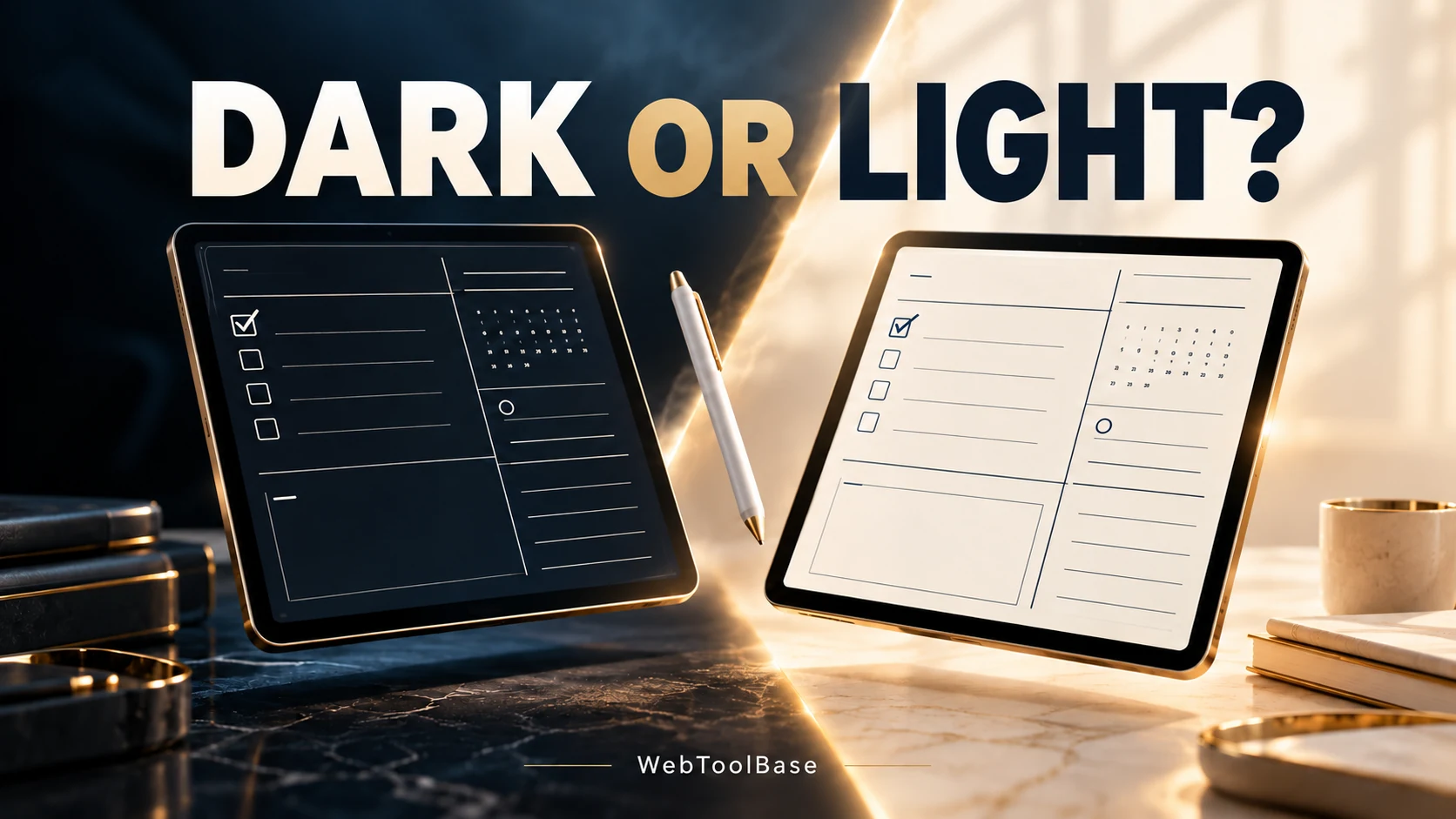
Choose a digital planner by testing its page colors, handwriting visibility and navigation where you will use it. Compare the same short planning task in a dark and a light layout, then choose the version whose labels and next actions you can find easily.
If you are searching for a dark mode ADHD digital planner for Goodnotes, start with the actual PDF and your workflow. A dark layout is a visual option. Planner colors do not establish a treatment benefit for ADHD, and a contrast ratio does not measure personal comfort.
Compare the page, the app interface and your handwriting
Check three things separately: the surrounding app interface, the planner page itself and the ink you add. Open the exact file in your installed app rather than assuming an appearance switch changes all three.
On a dark page, try your usual pen, highlighter and text colors. Repeat the same short entry on a light page. Check a completed task, an unfinished task, a date label and a navigation link at your usual zoom level. An attractive product image cannot show whether every small label is readable for you.
What does text contrast tell you?
The W3C’s WCAG contrast guidance sets a Level AA minimum of 4.5:1 for ordinary text and 3:1 for large text, with defined exceptions. Large text means at least 18 point regular or 14 point bold. These thresholds address text contrast, rather than personal comfort or a complete accessibility assessment.
The examples below use the WCAG relative-luminance formula. White text on navy and navy text on white have the same mathematical ratio, even though the two page layouts can feel different to use.
| Text | Background | Ratio | AA ordinary text |
|---|---|---|---|
| White #FFFFFF | Navy #0F2C59 | 13.77:1 | Pass |
| Navy #0F2C59 | White #FFFFFF | 13.77:1 | Pass |
| Off-white #F5F5F5 | Navy #0F2C59 | 12.63:1 | Pass |
| Gray #6B7280 | Navy #0F2C59 | 2.85:1 | Fail |
These are calculated color-pair examples, not measurements of every element in a WebToolBase planner. Actual PDFs, images, handwriting and controls need their own checks. Use words or a check mark as well as color to communicate task status.
Try the Color Palette Generator with navy
Open the free Color Palette Generator. Choose a base color, select a harmony rule and variation, then use Generate Palette. For a repeatable starting point, enter navy #0F2C59 in the color picker, choose Monochromatic and keep the Default variation. Review the displayed HEX values before using them for ink, labels or accents.
The tool generates color combinations. It does not currently calculate text contrast. Its Dark variation changes generated colors, including the primary swatch, so keep Default when you want to retain the exact base color. Check each intended text/background pair separately rather than treating a harmonious palette as proof of readable text.
For example, #6B7280 gray on #0F2C59 navy gives about 2.85:1 and falls below the ordinary-text threshold. Off-white #F5F5F5 on the same navy gives about 12.63:1. A muted-looking label still needs enough contrast, and its font size and weight also matter.
Test the same small planning task in both layouts
Use three identical entries: one appointment, one next action and one note. Make the next action concrete, such as “open the project file,” rather than writing a whole project name. Keeping the content identical makes the layout comparison more useful.
First, find the next action without zooming. Then add a note, mark an item complete and navigate away and back. Check whether you can still distinguish the completed item from one you have not started. Try the same steps in your usual working light and at a brightness you find comfortable.
A light layout may suit one setting while a dark layout suits another. You can choose by context. If you also want help writing a useful next action, try the small-steps task guide and its free checklist.
Compare the WebToolBase planner options
The WebToolBase Shop currently lists the Dark Teal ADHD Digital Planner at $9.99 and the Complete Dual Edition Bundle at $17. The bundle listing includes both Dark Teal and Light interactive PDF editions. These are listing details checked October 28, 2026; confirm the current price and included files before purchase.
Dark Teal is the product name. Navy #0F2C59 in this guide is a separate worked example, not a measured specification for the planner. The Shop lists 76 undated pages, 909 hyperlinks and a 14-page companion guide for Dark Teal. Those counts describe the listing; this guide has not independently tested every page or hyperlink in the downloadable files.
For Goodnotes or another annotation app, test a sample on your actual device and app version when one is available. Try internal navigation, your handwriting and an exported page. Confirm file format, orientation and app requirements before buying. An attractive preview alone cannot verify compatibility or those behaviors.
Keep a short comparison note
Record the version you tried, your app and device, your ink colors, and any labels or links you had trouble reading. That note gives you a practical reason to keep or change a layout. Choose the planner you can use for your next task, based on the file and workflow you actually tried.
Written by WebToolBase. Shop listings, palette controls and reference calculations checked October 28, 2026. Report a problem or suggest a correction.